
TiviMate Playlist Setup: Step-by-Step Guide
TiviMate is the best player for watching live TV on a big screen, but its setup is less guided than IPTV Smarters Pro. Add your playlist in the wrong place and the channels appear without a programme guide, or the guide fills in on the wrong group. This post walks through the correct order so your FAVIPTV subscription loads once, completely.
Step 1: Add the playlist with Xtream Codes
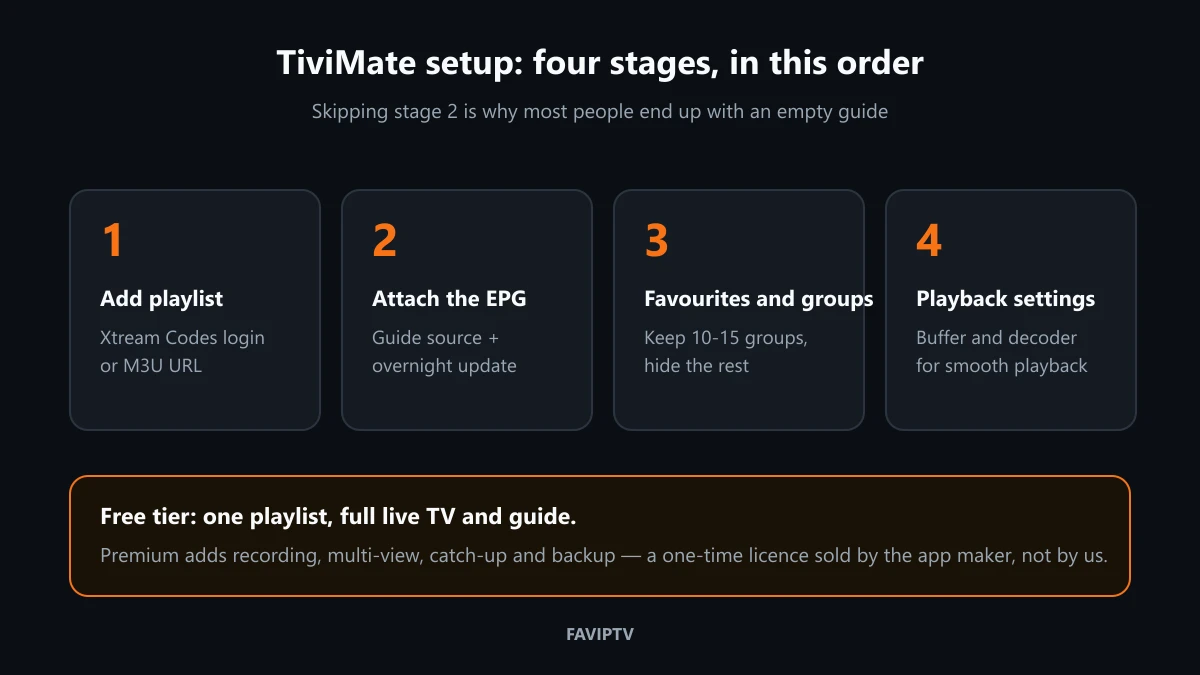
Open TiviMate and choose “Add playlist”. Pick Xtream Codes and enter the three values from your subscription email — server URL (including the port), username and password. Sign in and let the app download your channels, movies, series and the EPG. This first load can take several minutes because the guide is large; leave it connected to Wi-Fi or Ethernet and do not close the app.
If your provider gave you an M3U link instead, choose the M3U option and paste it. Everything below still applies — the only difference is that TiviMate learns your login details from the link rather than from three separate fields.
Step 2: Give the EPG its own update slot
The guide is what makes TiviMate worth using, and it is also what slows it down. In Settings, open EPG and set the update to run overnight, when no one is watching. During the day the app then reads from cache instead of refreshing thousands of programme entries while you watch. Turn on “EPG offset” only if your guide shows programmes one or two hours out — most regions do not need it.
Step 3: Set the buffer and the player engine
Open Settings, then Playback. Set the buffer to 10–15 seconds. A longer buffer trades a small delay for smooth playback, and it is the single easiest fix for occasional freezing. Under Player, keep the default decoder unless your TV shows green lines on 4K — then switch to the hardware decoder for that channel group.
Step 4: Build a favourites list, not forty groups
A 50,000-channel list is only useful if your twenty channels are one press away. Create a Favourites group and add the channels your household actually watches. Hide the rest of the groups you never use — TiviMate lets you hide groups so the guide stays short. This one change makes the app feel like a normal TV box instead of a database.
Step 5: Turn on catch-up where it exists
TiviMate’s catch-up browsing is one of its best features, but it only works on channels that support it. Open a channel’s options and look for the catch-up icon; if your subscription includes catch-up TV, missed programmes appear there up to seven days back. There is no setting to enable — the channel either offers it or it does not.
Premium licence: what it unlocks and whether you need it
TiviMate’s free version covers the basics — live TV, the guide, favourites — but the features that make it sing are behind the Premium licence: scheduled recording, multi-view, catch-up browsing and backup/restore. According to the official site, Premium is a one-time payment listed at $33.99 for use on up to 5 devices, so it is a one-off cost, not a monthly subscription — and it is separate from your IPTV subscription, which is what pays for the channels themselves. Buy it only after you have used the free version for a week; if you rarely record and never use multi-view, the free app is genuinely enough.
Multiple playlists and switching accounts
TiviMate can hold more than one playlist at once, which matters in two common situations: a household with two subscriptions, and the normal trial-to-paid transition. Add the second playlist under Settings, and switch between them from the main menu instead of deleting and re-adding. When your trial ends, add the paid playlist alongside it and switch once the new one loads — you keep your favourites and settings on the old playlist until you are sure the new one is complete, then hide the trial playlist instead of deleting it, in case you need to compare.
Backup before a factory reset or a new stick
TiviMate’s Premium backup exports your playlists, favourites, groups and settings to a file or your Google Drive. The free version cannot do this, so if you buy Premium, back up before anything else. New Firesticks, a factory reset after an update, or a TV that replaces the old one all wipe the app — the subscription email has your login, but your carefully built favourites groups only exist in the backup. Five minutes of backup here saves an evening of rebuilding them later.
Common failures and their fixes
Channels load but the guide is empty: the EPG URL was not imported with the playlist, or the guide update was paused. Re-add the playlist and wait for the first full download — our EPG not loading guide covers every variant of this failure. Playback freezes every few seconds: check the buffer size and your Wi-Fi signal first, then read our IPTV buffering fix page — TiviMate cannot outrun a weak connection. “No playlist” error after a day: your subscription may have expired; check the date in your account email or contact support on WhatsApp at +212 653 362 639.
The fastest way to practice these steps is the free 24-hour trial: install TiviMate, add the trial playlist, and learn the menus before your paid subscription starts. When you are ready, the full walkthrough for every device is in our setup guide, and IPTV Smarters Pro vs TiviMate explains which player suits you better.
Sources: TiviMate (official site).

How we test and review
Every guide on this blog is checked against the current versions of the apps and devices it covers, and pricing figures come from our live service data. Comparisons are verified with a real account through the free 24-hour trial before a recommendation is made. When an app changes its setup flow, we revise the guide instead of leaving stale steps in place, and the date at the top of each post shows when it was published.