
FAVIPTV Device Setup Guide
Follow our step-by-step guides to set up FAVIPTV on your device. Choose your device below to get started.
Android Phones, Tablets, Android TV, TV Box
Supported Apps

Setup Guide – IPTV Smarters Pro (Android)
- 1.Open Google Play Store
- 2.Search for IPTV Smarters Pro
- 3.Install and open the app
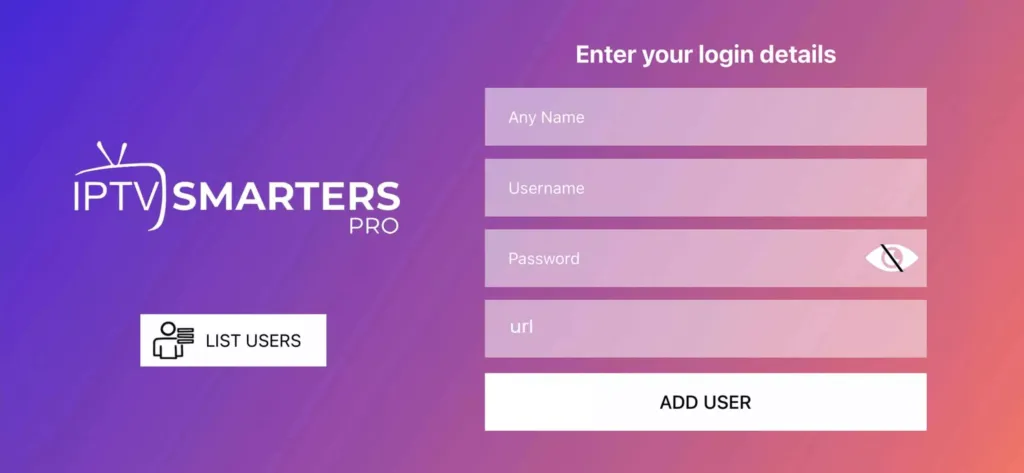
- 4.Select Login with Xtream Codes API
- 5.Enter Username, Password, and Server URL
- 6.Click Login and wait for content to load
Available Features
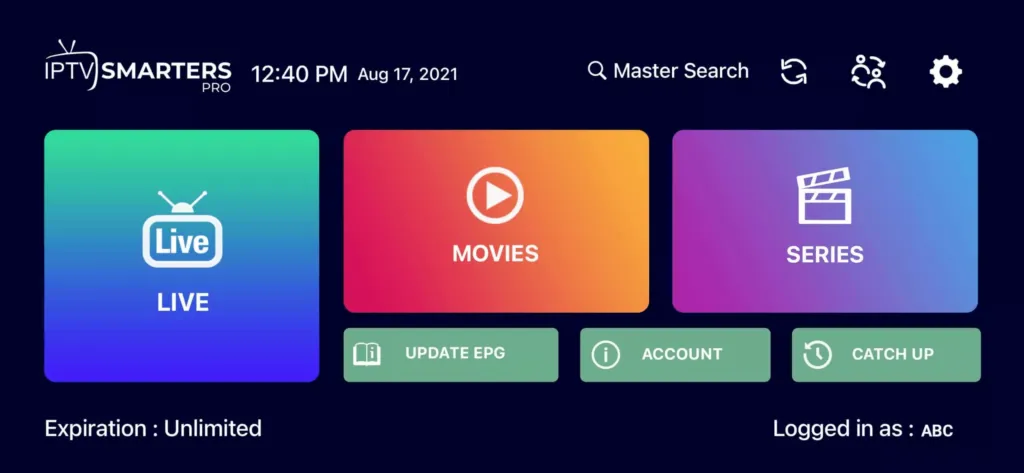
- ✓ Live TV, Movies, Series
- ✓ EPG (TV Guide)
- ✓ Catch-Up (if supported)
- ✓ Favorites & Parental Control
Amazon Firestick / Fire TV
New to Fire TV? Read our guide to IPTV for Firestick, including which model to buy, the best players and a full FAQ.
Check your model: Vega OS sticks cannot install apps
The steps below are for Fire OS devices. The Fire TV Stick 4K Select (2025), the 2026 Fire TV Stick HD and the 3rd-gen Fire TV Stick 4K (2026) run Vega OS, which has no unknown-sources toggle and no Downloader — IPTV Smarters Pro and TiviMate cannot be installed on them at all. Check Settings > My Fire TV > About first. If you own a Vega OS stick, use another device or message us on WhatsApp before you buy anything.
Supported Apps
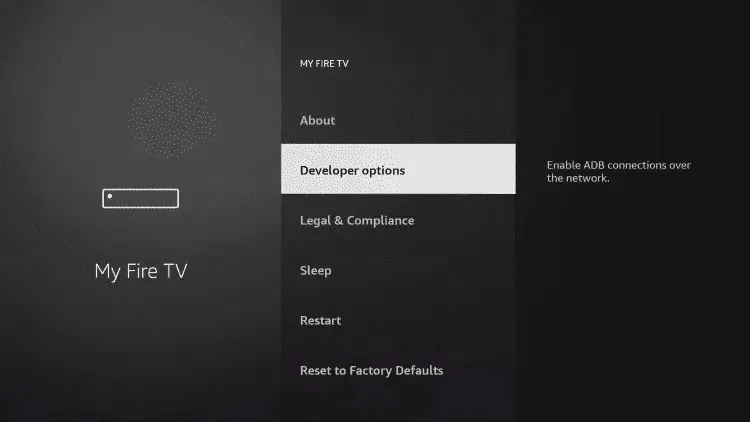
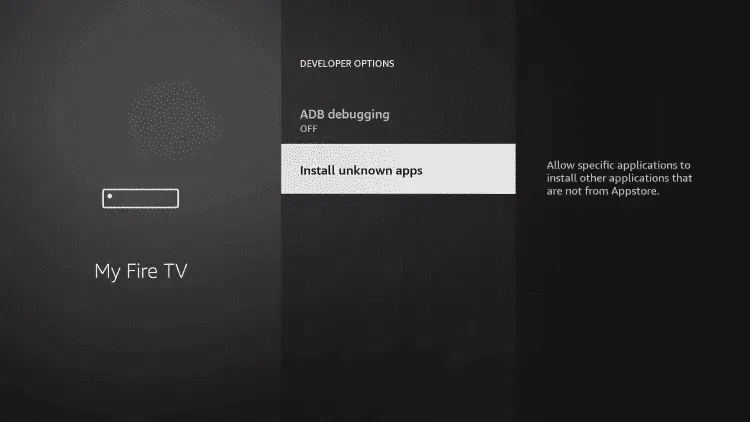
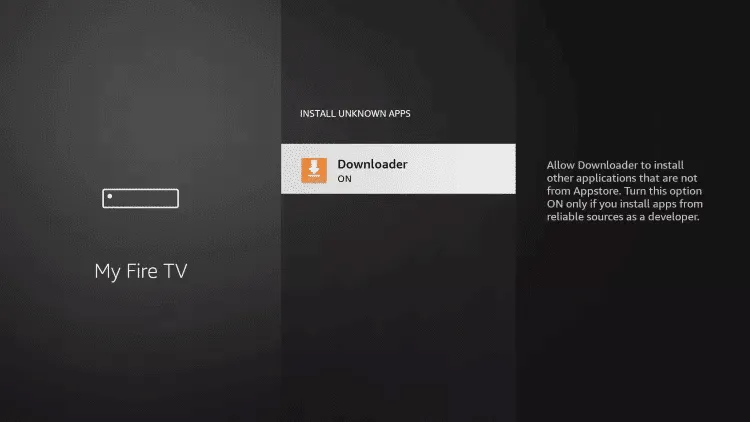
Step 1: Enable Unknown Apps
- 1.Go to Settings > My Fire TV > Developer Options
- 2.Enable Apps from Unknown Sources
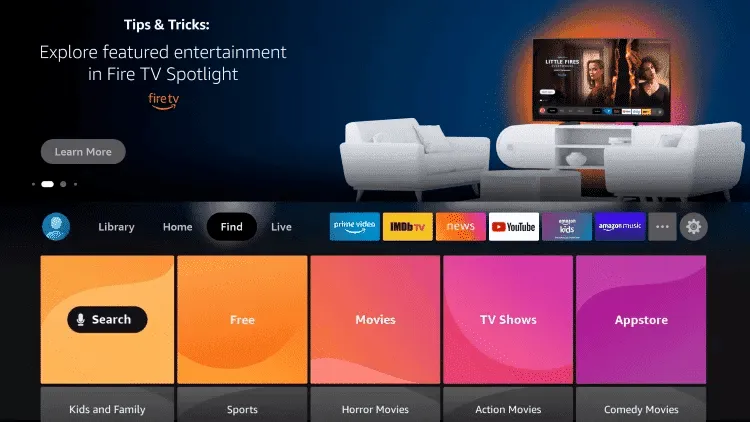
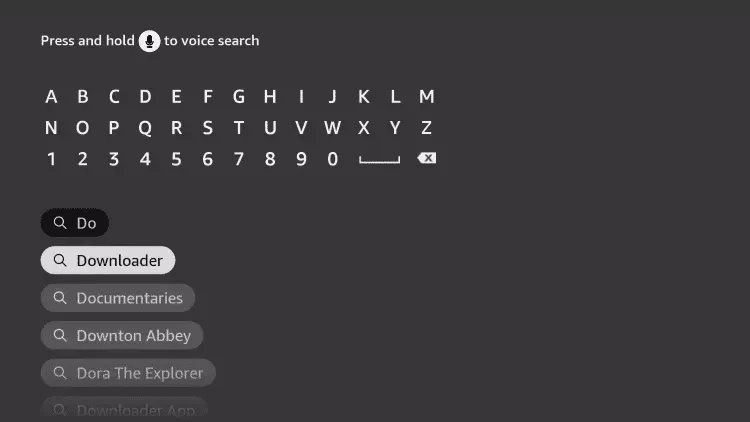
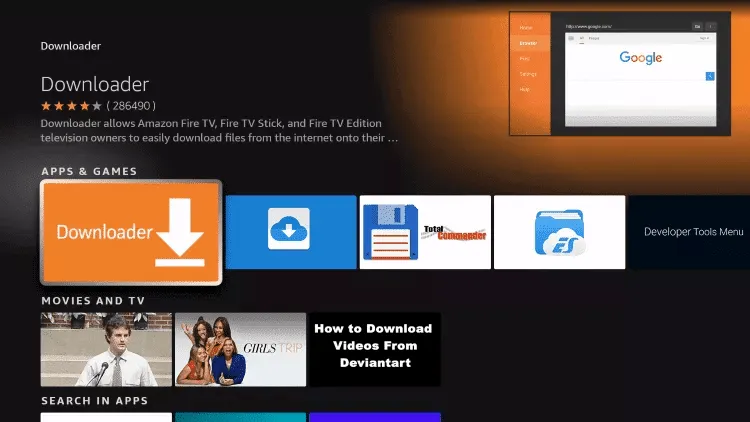
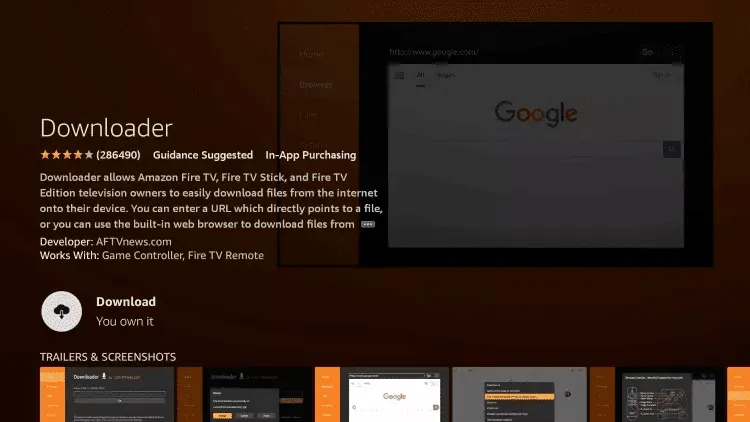
Step 2: Install Downloader App
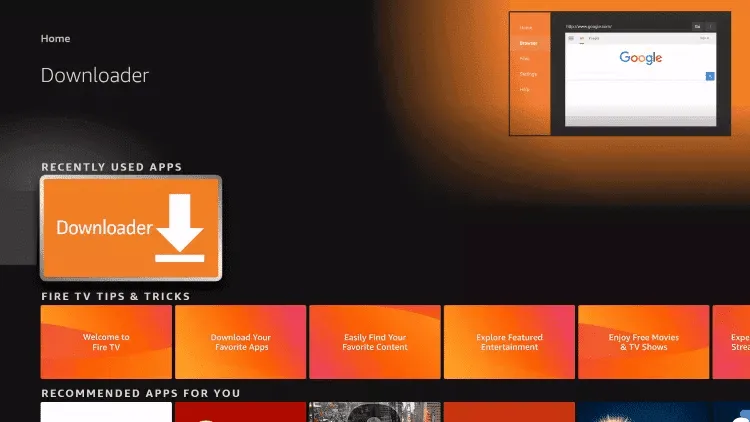
- 1.Open Amazon App Store
- 2.Search for Downloader
- 3.Install and open it
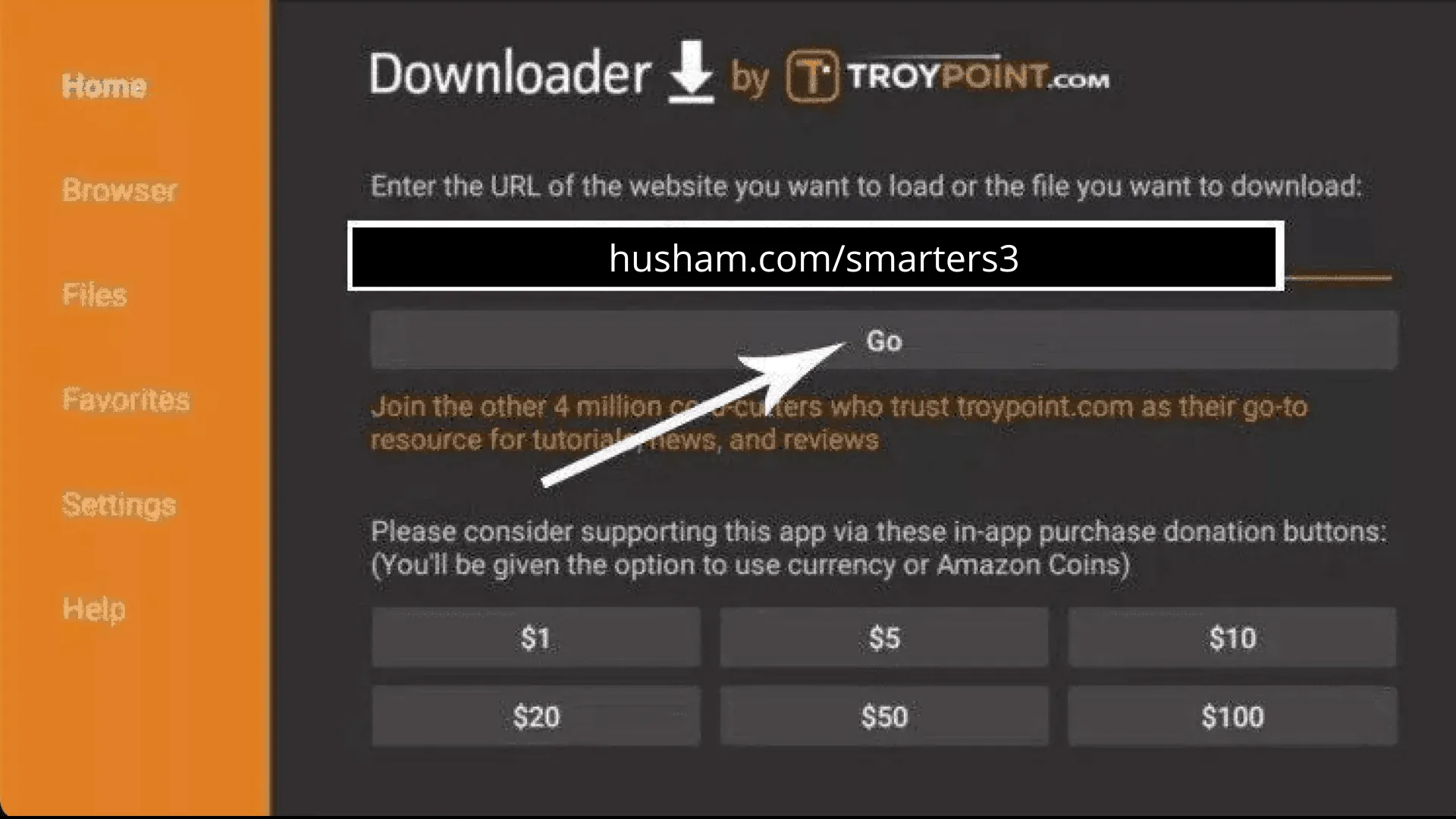
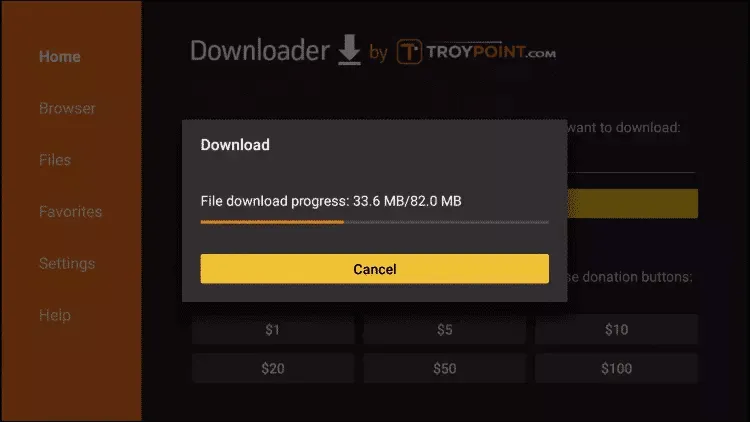
Step 3: Install IPTV App
- 1.Enter the official download code or URL
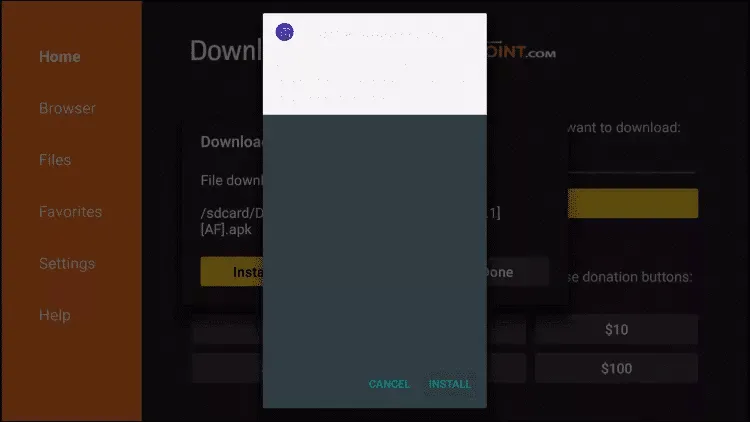
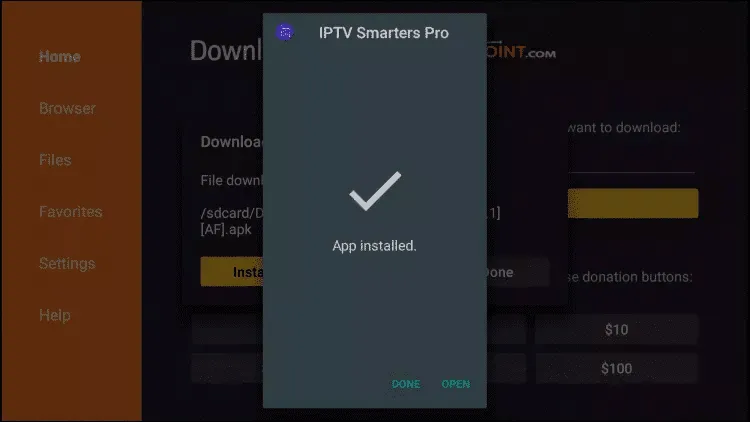
- 2.Install IPTV Smarters Pro or TiviMate
- 3.Open the app and log in using Xtream Codes
Samsung & LG Smart TVs
Supported Apps
Samsung Smart TV (Tizen OS)
- 1.Open Samsung App Store
- 2.Install IPTV app
- 3.Launch app and note the MAC Address
- 4.Send MAC to FAVIPTV support
- 5.Restart the app after activation
LG Smart TV (WebOS)
- 1.Open LG Content Store
- 2.Install IPTV app
- 3.Log in using Xtream Codes or MAC
- 4.Restart TV if needed
MAG Devices (MAG 250 / 254 / 256 / 322)
Setup Steps
- 1.Turn on your MAG device
- 2.Go to Settings > System Settings > Servers
- 3.Enter Portal URL provided by FAVIPTV
- 4.Restart the device
- 5.Channels will load automatically
Windows & Mac Computers
Supported Apps

IPTV Smarters Setup
- 1.Download IPTV Smarters from official website
- 2.Install and open
- 3.Login using Xtream Codes
- 4.Enjoy Live TV & VOD
VLC (Advanced Users)
- 1.Open VLC
- 2.Go to Media > Open Network Stream
- 3.Paste M3U URL
- 4.Click Play
iPhone / iPad
Supported Apps

Setup Steps
- 1.Open Apple App Store
- 2.Install IPTV app
- 3.Login using Xtream Codes or M3U URL
- 4.Allow permissions
Enigma2 / Dreambox
Supported Plugins
Setup Steps
- 1.Install IPTV plugin
- 2.Enter Xtream Codes details
- 3.Restart Enigma2 interface
- 4.Channels appear in bouquets
Need Help?
Our support team is available 24/7 to help you with setup and troubleshooting.
Setup guides for every device
Pick your device for the exact steps, the apps that work on it, and the fixes for the errors people hit most often.
Setup questions, answered
How long does FAVIPTV setup take?
Most devices take under 10 minutes: install the player app, enter your Xtream Codes login (server URL, username and password) and the channels and EPG load automatically. MAG and Formuler boxes need the portal URL instead of a login.
What do I need before I start setup?
A FAVIPTV subscription with credentials (or a free 24-hour trial), a compatible device, and an internet connection of at least 10 Mbps for HD or 25 Mbps for 4K. Your credentials arrive by email within minutes of subscribing.
Which device is easiest to set up?
Firestick with IPTV Smarters Pro or TiviMate is the easiest for most people. Android TV and Samsung/LG Smart TVs are also straightforward. MAG boxes are the simplest to use day to day but need the portal URL from support.
What if my channels do not load after setup?
First check that the server URL, username and password were entered exactly, then restart the app and the device. If it still fails, contact support on WhatsApp at +212 653 362 639 with a screenshot of the error.
Before installing anything, check that your IPTV subscription details match what each guide below expects.
Read next: IPTV for Firestick and IPTV web player.