
IPTV EPG Not Loading: Fix It
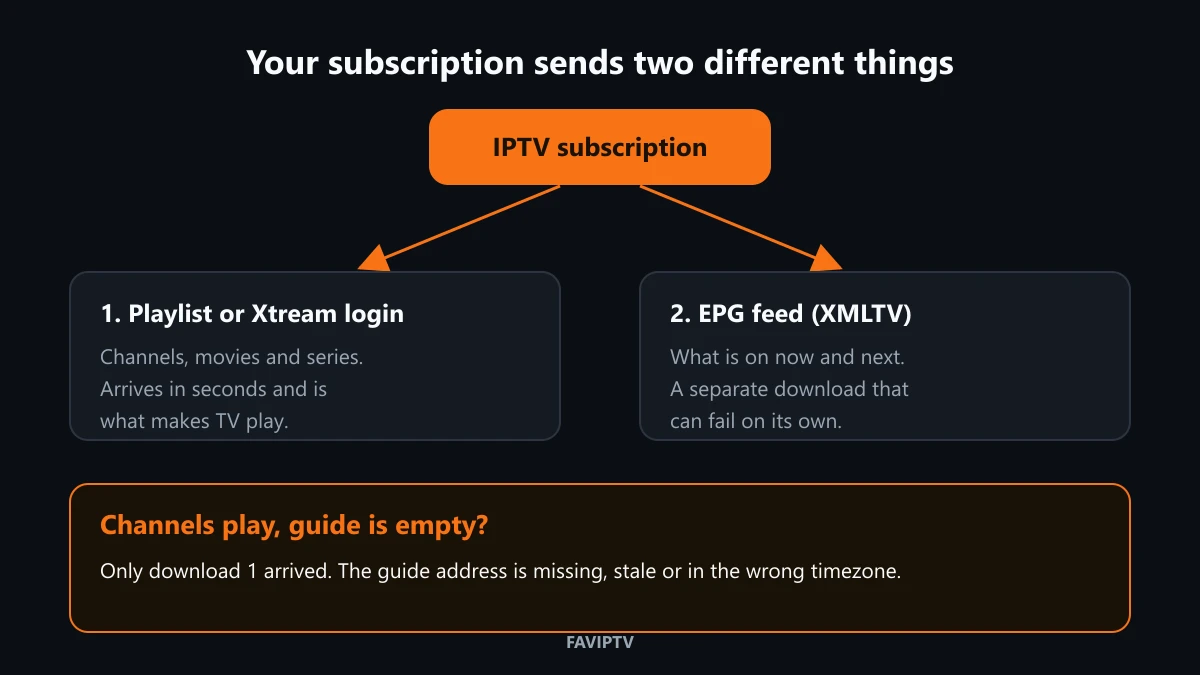
Your channels play perfectly, but the guide is a wall of “No information available”. This is one of the most common IPTV complaints, and it confuses people because everything else works. The reason is simple once you see it: the programme guide (EPG) is not part of the channel list. It is a separate file that the app downloads from a separate address, and it fails independently. Fixing it means fixing the second download, not the first.
Why a working playlist still has an empty guide
When you log in with Xtream Codes, the app fetches two things: the channel list and the EPG feed. If only the first arrives, you get exactly this symptom — watchable TV, empty guide. With an M3U playlist, the same split exists: the playlist file may contain the EPG address, or it may not, and if it does not, no guide will ever appear no matter how many times you reload the playlist. So the first question to answer is always: did my login method actually include a guide address?
The four real causes
The M3U link has no EPG address in it. Many free and cheap playlist links carry channels only. The fix is to ask your provider for the EPG URL — it usually looks like an XML file address ending in .xml or .xml.gz — and add it in the playlist settings. In TiviMate this is Settings, Playlists, your playlist, EPG URL. In IPTV Smarters Pro, the EPG is part of the Xtream Codes login, so switch logins (our M3U vs Xtream Codes post explains the difference) rather than hunting for a setting that does not exist there.
The EPG address changed or expired. Providers occasionally move their guide feed, and an old bookmarked or saved address returns nothing. The app reports this as an empty guide rather than an error, so it looks like your setup broke. Re-adding the playlist from the current subscription email, with the current EPG address, is the fix — do not reuse saved addresses from old emails.
The guide cache is stale. TiviMate caches the guide and refills it on its update schedule. If an update was interrupted, skipped, or set to run only overnight, the guide can sit empty for hours while the app believes it is up to date. Force an EPG update from the settings, and leave the app alone until it finishes — the first full download for a large library can take a long while, and closing the app mid-download restarts it.
The guide loaded, but in the wrong timezone. Some EPG feeds are published in UTC. The data is there, but programmes appear one or two hours away from where they should be, which looks the same as an empty guide when you scan the “now” column. TiviMate has an EPG offset setting for exactly this: try plus or minus one or two hours before concluding the guide is missing. Only a small number of regions need it, but for those regions it is the entire fix.
Fixing it in TiviMate, step by step
Open Settings, then Playlists, and check the EPG URL field on your playlist — an empty field is your answer. Paste the current address from your subscription email, save, and run the EPG update. If the URL is present and the guide is still empty, clear the EPG cache or force a full update, then check the time offset. Our TiviMate playlist setup post walks through the full order so the guide settings land correctly the first time.
Fixing it in IPTV Smarters Pro
Smarters Pro pulls the guide as part of the Xtream Codes login, so the repair is to re-run that login: log out, choose Login with Xtream Codes API, re-enter the server URL, username and password, and wait for the full first download. If you originally logged in with an M3U link, the app may have nothing to fetch the guide from — switching to the Xtream Codes login is usually the whole fix.
When you just need to wait
On a first setup with a big library, a guide that shows partial data — some channels filled, some empty — is the download still in progress, not a failure. Close the app and it starts again; leave it open, connected, and let it finish. Give it one full cycle before applying any fix from this page.
If the guide arrived but the channels themselves will not play, that is a different problem — see our IPTV Smarters Pro not working guide — or contact support on WhatsApp at +212 653 362 639 with a screenshot of the empty guide and which player you are using. That one detail saves a round of troubleshooting.
Sources: IPTV Smarters Pro (official site) · TiviMate (official site).

How we test and review
Every guide on this blog is checked against the current versions of the apps and devices it covers, and pricing figures come from our live service data. Comparisons are verified with a real account through the free 24-hour trial before a recommendation is made. When an app changes its setup flow, we revise the guide instead of leaving stale steps in place, and the date at the top of each post shows when it was published.