IPTV Smarters Pro Login: What You Need
“IPTV Smarters Pro login” searches usually mean one of two things: the account details you type into the app, or the short pairing code older TV versions showed on screen. Neither one is a secret — but where you enter them matters, and getting them slightly wrong is why most logins fail.
The three values that actually log you in
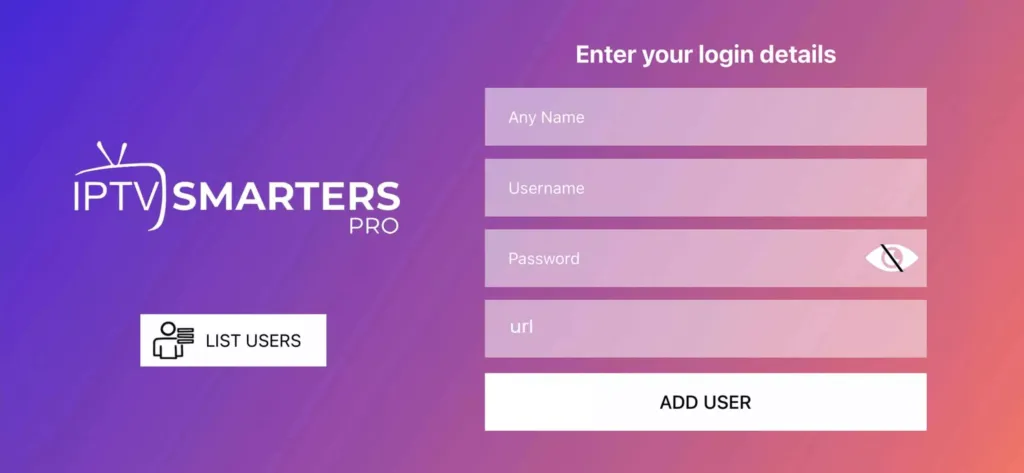
IPTV Smarters Pro does not have a username-and-password page of its own. It borrows your subscription. In the app, choose Login with Xtream Codes API and enter the server URL from your provider email — including the port number, for example http://server.example.com:8080 — then your username and password. Tap Login and the app pulls your channels, movies, series and EPG.
If your provider sent an M3U playlist link instead, choose Login with M3U Playlist and paste the link. The result is the same content; with Xtream Codes the app additionally learns your account expiry date. Our M3U vs Xtream Codes post explains when each one is better.
What the “Smarters Pro codes” searches really mean
The famous “codes” people search for are not universal unlock codes — there is no master code that adds channels to the app. What they mean is one of these:
- Your account credentials. The server URL, username and password from your subscription email. Passed around in videos as “working codes”, they are simply someone else’s login, and they expire or get blocked.
- The TV pairing code. Some TV and Firestick versions display a short code on first launch so you can enter your login on your phone instead of with the TV remote. That code comes from the app itself, on your screen, at setup time. You do not need to find one online — the app generates it.
- Playlist codes from third-party lists. Free “codes” lists circulating online are recycled M3U links. They break constantly, carry no EPG and often bundle ads or worse. If a code list being shared needs no account and never expires, that is the warning sign.
The safe route is always the same: get your own credentials from the provider, enter them directly in the app, and let the app generate any pairing code it needs.
Where your three values come from
Your provider sends the login in the subscription email, usually titled “your IPTV account details” or similar. The server URL looks like http://host.example.com:8080 — note the port number at the end. Leaving it off is the single most common login failure, because the app treats a URL without the port as a different server. The username is often an email address or a short code, and the password is case-sensitive: Pass123 and pass123 are different passwords. If you copy the values from a PDF or image, avoid trailing spaces — Smarters Pro will reject a username with a hidden space at the end, and the error message will still say “invalid credentials” rather than pointing at the space.
The same login never expires mid-app in a way that logs you out silently. If you are already signed in and suddenly every channel stops, your subscription has almost certainly expired rather than the app breaking. The app does not warn you in advance, so the dead screen is the first sign. Check the expiry date in your subscription email, or ask support on WhatsApp at +212 653 362 639 — with your username they can confirm the date in seconds.
After login: the first load and how long it takes
The first login downloads your channels, movies, series metadata and the EPG, which can take anywhere from two minutes to twenty depending on your connection and the size of the library. During this time the app may show an empty or partially filled interface — this is normal, not a freeze. Do not force-close the app mid-download, because the next launch starts the download from the beginning. On a Firestick, keep the app in the foreground and the TV awake until the progress indicator completes.
Once loaded, do a quick sanity check before you call it done: open the live TV section and zap through a few channels, open the guide, and open one movie. If live TV works but the EPG is blank, the guide file is still downloading — give it another few minutes. If movies show but series do not, you likely logged in with an M3U link; the series library needs the Xtream Codes login (see M3U vs Xtream Codes).
The three login errors that stop everyone
It spins forever, then times out. The server URL is wrong — usually a missing port or a space at the end copied from the email. Re-type it by hand.
“Invalid server” or “user not found”. Your subscription has expired or the account was never activated. Check the expiry date in your email, or message support on WhatsApp at +212 653 362 639 with a screenshot.
Channels appear but movies and series do not. You logged in with an M3U link on an account whose library needs the Xtream Codes login, or the first EPG download has not finished. Switch to the Xtream Codes login and let the app load fully once.
New to Smarters Pro? Our Firestick installation guide covers getting the app onto your device, and the free 24-hour trial sends you a login to practise with. If you are choosing between players, Smarters Pro vs TiviMate compares them directly.
Sources: IPTV Smarters Pro (official site).

How we test and review
Every guide on this blog is checked against the current versions of the apps and devices it covers, and pricing figures come from our live service data. Comparisons are verified with a real account through the free 24-hour trial before a recommendation is made. When an app changes its setup flow, we revise the guide instead of leaving stale steps in place, and the date at the top of each post shows when it was published.